Test in the playground
The Playground is where you can test your agent before deploying it to real customers. It's a safe environment to have conversations, see how your agent responds, and make improvements.
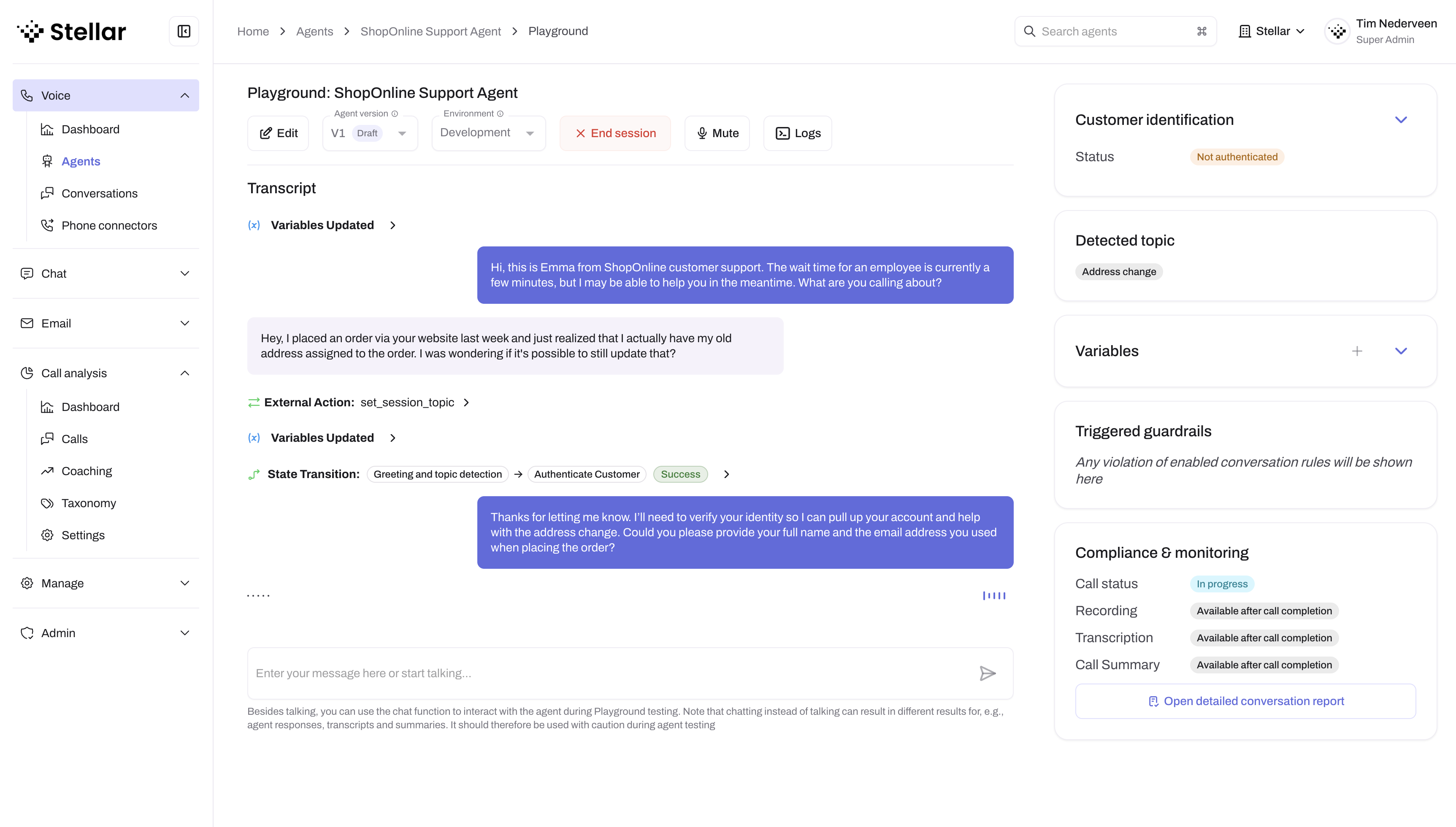
Accessing the playground
There are 2 ways to access the playground for your agent.
Option 1: From the agent editor
- Open your agent in the editor
- Click the Test button at the top right of the page
Option 2: From the agents overview
- Navigate to the agents overview by clicking Agents and then Manage agents in the navigation menu
- Find your agent in the agents overview table and click Test in playground
Starting a test conversation
The playground lets you have a voice conversation with your agent directly from your browser:
- Make sure your browser has microphone access enabled
- Click the Start session button to start the conversation. Make sure you have given permissons for your microphone and speakers to be used.
- Begin speaking to test your agent using either Push to talk or Always listening mode.
For your first test, just try a simple interaction like "Hi, can you help me?" to see how your agent greets customers.
Understanding the playground interface
The playground provides several tools to monitor your agent's performance:
Timeline event feed
On the left side, you'll see a unified timeline that shows everything happening in real-time:
- Conversation transcipts: What you (the customer) said and how the agent responded
- System events: State transitions, actions performed, variables being set and guardrails that trigger
This combined view gives you a complete picture of both the conversation and what's happening behind the scenes as your agent processes each interaction.
This timeline is not just recorded for playground conversations. You will have this overview for all conversations that your agents have, also in production.
Audio visualization
A waveform display shows audio levels in real-time, helping you confirm that the agent is hearing you clearly.
Chat input window
At the bottom of the event feed you have a chat input field that you can use to interact with your agent using pure text input. This can be convenient for testing in public spaces where you can't speak.
This is a text-input convenience for testing voice agents. For Stellar's dedicated text-chat product (including the embeddable chat widget), see the Chat section.
The models Stellar uses for your agent can work with both audio and text input.
Conversation modes
Studio offers two conversation modes: Push to talk and Always listening. You can switch between the modes using the toggle in the playground controls.
Push to talk (default)
- Click and hold to speak, release when done
- Useful for testing in noisy environments
- Good for precise control over turn-taking, for example in demos
Always listening
- Your audio is continuously recorded to detect if you are speaking
- The agent automatically detects when you've finished speaking
- Most natural for testing normal conversations
Testing tips
Here are some things to try when testing your agent:
- Test Common Scenarios: Ask questions your customers typically ask
- Try Edge Cases: See what happens with unclear or unexpected questions
- Check Handovers: Test any handover actions you've configured
- Monitor Guardrails: Watch the event feed to see if any guardrails trigger
- Test Interruptions: Try interrupting the agent mid-response
Making adjustments
If you notice potential improvements during testing:
- Click End session to end the current conversation
- Navigate to the agent editor (you can just click Edit Agent in the playground)
- Make your changes and save
- Return to the Playground and test again (you can use the Test button in the agent editor)
Configuration changes apply to new conversations immediately, so you can iterate quickly.
What's next?
Next, let's look at how to review your conversation in detail.