Playground
The Playground lets you talk to your agent and see real-time events, state transitions, and action calls before deploying to production. You can test it over voice or, if your agent has chat enabled, over text chat.
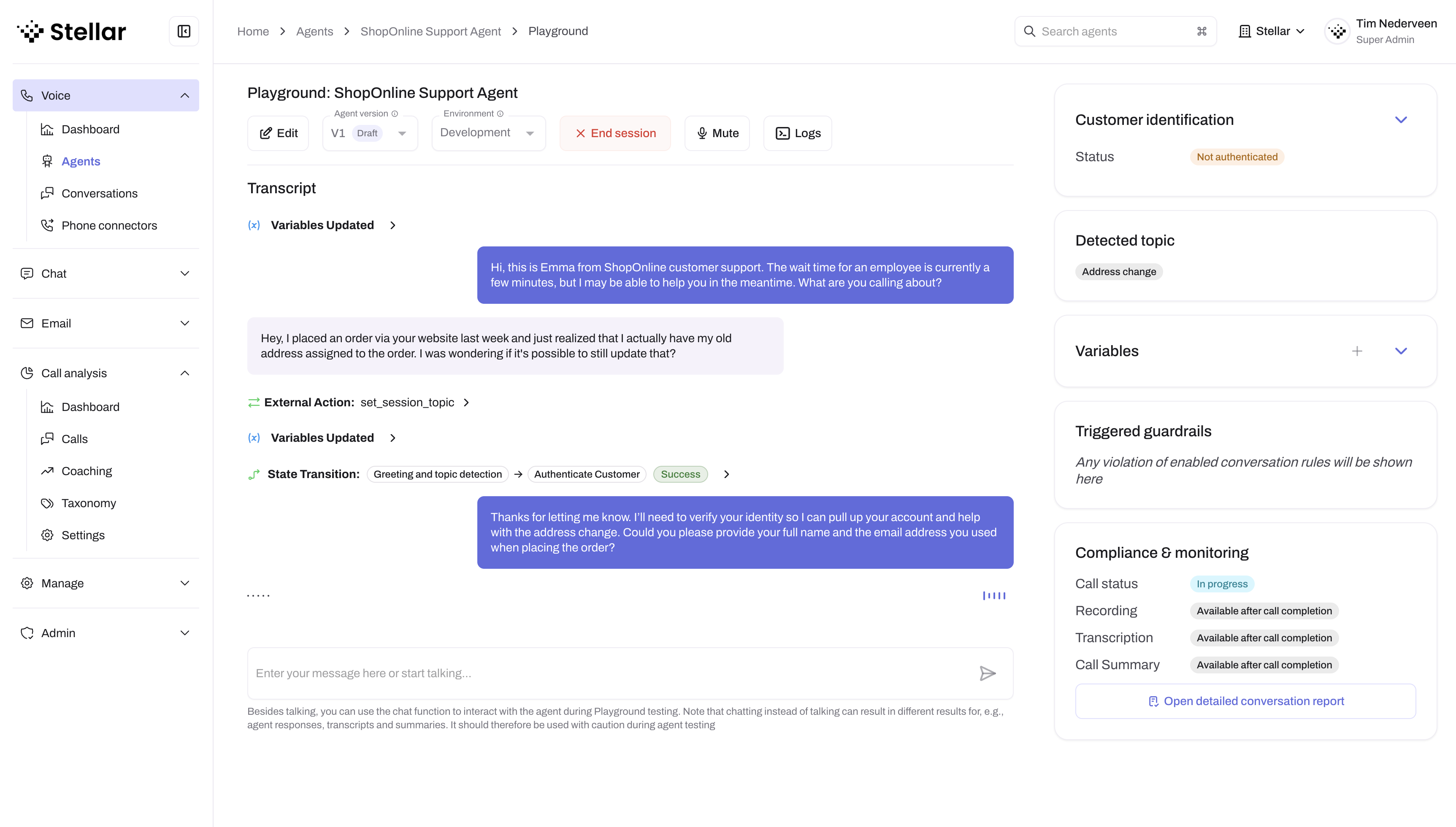
To start testing, open your agent in Studio and click the Test button in the top-right. For a voice session your browser will need microphone access. Click End session when finished, and the conversation is automatically saved to your Conversations list for review.
Voice and chat channels
If your agent has both voice and chat enabled, a Voice / Chat switcher appears in the Playground header. Pick Voice to speak to your agent, or Chat to type messages and read its replies. When only one channel is enabled, the switcher is hidden and that channel is used automatically.
Both channels test the same agent configuration, so you can use chat for a quick written walkthrough and voice for a realistic spoken run. The environment selector, version selector, and every observability panel described below apply to whichever channel you pick.
Testing over chat
In chat mode, type a message in the box at the bottom and press send. The agent's reply streams into the thread as it's generated, the same way a customer would see it on a chat surface. Keep the conversation going as long as you like, then click End session to save it for review.
Everything that surrounds a voice session is still there: variables, triggered guardrails, conversation status, and the event feed all update as you chat. This makes chat a fast way to exercise state transitions, actions, and guardrails without needing a microphone.
Environment selector
Before starting a conversation, you can select which environment (Development, Staging, or Production) to test with. The selected environment determines which auth connector configuration, secret values, and variable values are used during the conversation.
This lets you verify that each environment is correctly configured without needing to make phone calls through a connector.
Before you can start a session, the Playground validates that all environment-dependent references in the agent's configuration—such as auth connector credentials and secret values—are available for the selected environment. If any are missing, a warning banner lists the issues and the Start session button is disabled until they are resolved.
Advanced settings
The Playground header row has an Advanced settings button (the sliders icon, to the right of the Start session button) that opens a popover with two test-time controls:
- Show event logs — toggles the event feed beneath the conversation (see Event feed below).
- Noise reduction — chooses how the Playground filters input audio from your microphone.
Noise reduction
Near-field (default) — For close-talking microphones such as headsets. Best for most desk testing, especially in noisier office environments.
Far-field — For far-field microphones such as laptop or conference room mics.
The setting only affects the Playground session—production phone calls use their own noise-reduction configuration. Your choice is remembered per agent.
Conversation modes
The Playground supports two modes for controlling when you speak:
Voice activity detection (VAD) — Speak naturally. The agent automatically detects when you finish speaking and responds. This simulates real customer conversations.
Push-to-talk — Hold a button to speak, release when done. The agent waits for you to release before responding. Useful in noisy environments or when you need precise control over turn-taking.
Toggle between modes using the microphone controls.
Conversation details
The conversation details panel shows real-time context as the conversation progresses:
- Variables: Current values of conversation variables as they're set or updated.
- Triggered guardrails: Any guardrail violations that occurred during the conversation.
- Compliance & monitoring: Call status, recording, transcription, and summary status. After the call ends, click Open detailed conversation report to review the full conversation.
These details are also available in the conversation detail view after the call ends.
Background action activity
When an agent delegates a task to a background action, the timeline keeps the task's activity grouped without hiding what the realtime agent is doing. The kickoff entry appears where the task started and shows live progress in an expandable Agent activity area. Each step can be expanded to inspect its details.
Actions taken on behalf of the background task, such as accurate transcription or sending a text message, appear under the step that initiated them. Concurrent realtime-agent activity remains in the main timeline. A separate response entry appears at the point where the background result returns, so the timeline preserves the order in which the caller experienced the conversation.
Testing strategies
Beyond happy-path testing, try:
- State transitions: Verify all dialogue states transition correctly and restricted states can't be reached incorrectly
- Actions: Trigger each action and check parameters are sent correctly
- Guardrails: Intentionally say things that should trigger guardrails to verify they activate correctly
- Edge cases: Ask unexpected questions, be deliberately unclear, or make requests outside the agent's scope
- Error handling: Test what happens when APIs fail or required information is missing
- Environments: Test each environment (Development, Staging, Production) to verify the correct credentials, auth connector configs, and variable values are resolved
Event feed
Enable Show event logs in the Advanced settings popover to open the event feed. It shows technical details about what's happening during the conversation. Common events include:
| Event | Description |
|---|---|
state.transition | Agent moved to a different dialogue state |
function_call | Agent executed an action |
guardrail.triggered | A guardrail rule was activated |
conversation.item.added | New message added to conversation |
input_audio_buffer.speech_started | Voice activity detected (you started speaking) |
input_audio_buffer.speech_stopped | Voice activity ended (you stopped speaking) |
If something unexpected happens, the event feed shows you exactly what the agent was doing—useful for debugging state transitions, action calls, or guardrail behavior.
Log levels
The Minimum log level setting (in Agent > Advanced) controls which events appear:
- Debug: Everything, including internal processing steps.
- Info (default): Normal events like state transitions, actions, and guardrails.
- Warn: Only warnings and errors.
- Error: Only errors.
Debug logging is disabled by default. If you need it while troubleshooting, contact Stellar to have it enabled for your organization. Until it is enabled, Debug appears in the list but cannot be selected, and an agent set to debug through the API is stored as Info instead.
Browser audio vs phone
The Playground uses browser audio, which differs from production phone systems:
- Audio quality depends on your microphone
- Network latency differs from phone connections
- Background noise handling may vary
For final validation before going live, test with your actual phone integration (SIP, Twilio, etc.).