Dialogue builder
The Dialogue Builder is where you design the conversation flow for your agent. Think of it as creating a map of different conversation scenarios and how your agent should navigate between them.
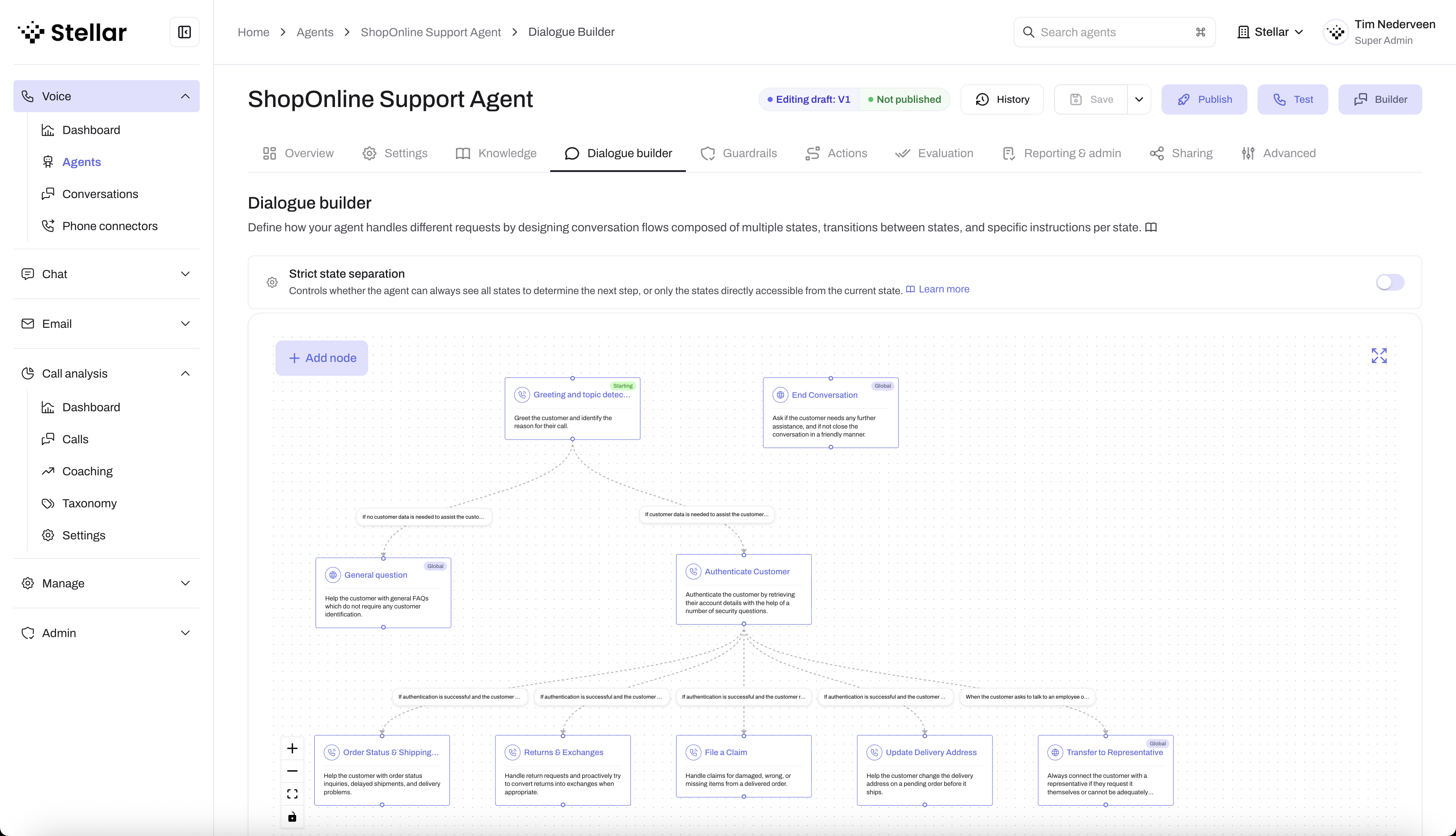 The visual designer shows your conversation flow as a graph of states and transitions
Understanding States
A state represents a specific context or phase in a conversation. Each state has its own instructions, available actions, and rules that guide how your agent behaves.
Example States
For a customer support agent, you might have states like:
- Initial Greeting: Welcome the customer and identify their need
- Billing Support: Handle billing questions and payment issues
- Technical Support: Troubleshoot technical problems
- Order Status: Look up and provide order information
- Closing: End the conversation professionally
Creating States
To add a new state:
- Open the Dialogue Builder tab
- Click Add Node
- Give your state a descriptive name
- Configure the state settings
State Configuration
Each state includes:
Name and Description
- Name: Short, clear identifier (e.g., "Billing Support")
- Description: Brief explanation of what happens in this state
Instructions
The instructions tell your agent how to behave while in this state. The instructions editor supports markdown formatting and @ mentions:
- Type
@to reference actions or variables inline - Actions appear as blue chips; variables appear as amber chips
- When the agent runs, action mentions are replaced with the action name, and variable mentions are replaced with the environment-specific value
Example instructions for a "Transaction Troubleshooting" state of a banking support agent:
- Determine the transaction problem:
  - Ask for details about the transaction (date, recipient name, estimated amount).
  - Determine which transactions the user is referring to (e.g., if they don't recognize the recipient or amount).
- Then solve the problem together with the user, using the different tools at your disposal:
  - The get_transaction_details tool retrieves recent transactions for a user; request up to 100 transactions if necessary.
    - search_transactions_by_amount tool searches transactions by amount (This is most effective if you have an estimated amount, and use a wider margin to find more transactions. PREFERABLY USE THIS TOOL IF THE USER MENTIONS AN AMOUNT)
    - the search_transactions_by_description tool searches transactions by description. This is a lowercase match, use single words or partial words.
    - the search_transactions_by_merchant tool searches transactions by merchant. This is a lowercase match, use single words or partial words.
  - Feel free to use multiple tools first to get a good overview of the transactions, and then use the tools to solve the problem.
  - Try to determine with the user as best as possible whether they should dispute the transaction.
  - When troubleshooting unknown transaction with the customer, be specific and direct. Make sure to follow these steps:
    - 1. First, describe the transaction that matches their query: "I can see a transaction on [date], for [amount], with description [description]. Is that the one you're referring to?"
    - 2. If the customer is asking for help understanding a transaction and you spot a pattern or related transactions (e.g., recurring charges, merchant name changes), explain that pattern clearly. For example "I can also see transactions for [recurring pattern], from [merchant name], with description [description]. [suggestion of what might be happening]"
    - 3. Confirm with the customer whether they agree and how they want to proceed, e.g. via something like "Does it sound like [hypothesis on what might be happening]? If not, we can still look at disputing it."
  - Do not share transaction IDs, but share amounts, dates, merchant names, and descriptions — the customer needs these details to recognise the transaction.
  - Only if you cannot solve the problem of recognizing the transaction, ask the user if they want to dispute the transaction.
  - If they want to dispute the transaction, offer to connect the customer to a dispute specialist.
  - If they don't need to dispute the transaction, proceed to the end conversation status.
  - If the discussion is very complex, or the user becomes frustrated, proceed to the transfer to representative status.
  - Always connect them with a representative for complex cases such as possible fraud or complex disputes.
  - Use exact amounts, merchant names, billing name changes, and recurring patterns to help the customer identify the transaction. Be specific and direct. For example, say things like "I see that you have a transaction with the same party every quarter, are you sure you recognize this?", or "I see that you have a transaction with the same amount every month, but 2 months ago the name changed from X to Y, could this be related?".
The prompting guide includes more guidance on how to prompt within specific states, including examples for specific common states such as an initial greeting state, authentication state, handover state, and transitions between states.
Actions
Select which actions the agent can use while in this state. This prevents the agent from performing inappropriate actions in certain contexts.
Actions can only be assigned to specific states when strict state separation is enabled for your agent. When this setting is disabled, all actions are globally available to the agent in any state.
Example:
- In "Verify Customer Identity" enable the
authenticate_useraction - In "Transaction Support" enable the
get_transactionsaction - In "Initial Greeting" don't enable any actions, just have a conversation
Globally Accessible
Toggle this ON if the agent should be able to reach this state from anywhere in the conversation.
Examples of globally accessible states:
- "End conversation" - Customer can end the call anytime
- "Transfer to human" - Customer can request human help anytime
Examples of states that should NOT be globally accessible:
- "Process Payment" - Should only be accessible after collecting payment details
- "Confirm Appointment" - Should only be accessible after scheduling details are gathered
Transitions
Transitions define when your agent moves from one state to another. Each transition has:
Source and target
- Source: The state the agent is currently in
- Target: The state the agent will move to
These are configured using the connector lines between the states in the dialogue builder.
Condition
The condition that must be met for this transition to occur. Write a complete, testable situation that includes the caller's intent and any prerequisite that must already be true.
Example transition conditions:
- "The caller asks about transactions on their own account and authentication has succeeded."
- "The caller wants to dispute a specific transaction and that transaction has been identified."
- "The caller explicitly asks to speak with a representative."
- "The caller's technical issue is resolved and they confirm they need no further help."
How Transitions Work
The agent evaluates transition conditions during the conversation and automatically moves to the appropriate state when conditions are met.
Example flow:
- Agent starts in "Initial Greeting"
- Caller says: "I want to check two transactions on my account."
- Condition "The caller asks about transactions on their own account" is met
- Agent transitions to "Verify Customer Identity"
- After authentication succeeds, the agent transitions to "Transaction Support"
- Agent now follows the "Transaction Support" instructions and can call
get_transactions
Building Your First Flow
Here's a simple support flow using focused states:
Step 1: Create Core States
| State | Purpose | Available actions | Globally accessible |
|---|---|---|---|
| Initial Greeting | Give the exact opening, wait, and identify the reason for calling | None | No |
| Verify Customer Identity | Collect one identifying value at a time and authenticate before account-specific help | authenticate_user | No |
| Transaction Support | Retrieve and explain transactions for an authenticated caller | get_transactions | No |
| Transfer to Representative | Explain why a representative is needed, then transfer once | transfer_to_representative | Yes |
Step 2: Define Transitions
From Initial Greeting:
- → Verify Customer Identity: "The caller asks about transactions on their own account."
- → Transfer to Representative: "The caller explicitly asks to speak with a representative."
From Verify Customer Identity:
- → Transaction Support: "Authentication succeeded and the caller's request concerns transactions on their own account."
- → Transfer to Representative: "Authentication cannot continue under the configured fallback path, or the caller asks for a representative."
From Transaction Support:
- → Transfer to Representative: "The request requires access or authority the agent does not have, or the caller asks for a representative."
Step 3: Test the Flow
Use the Playground to test different scenarios:
- Ask about account transactions and verify that authentication happens first
- Test successful and unsuccessful authentication paths
- Request a human agent from different states to test globally accessible transitions
Strict State Separation
This setting controls which state instructions, transitions, and actions are active during each conversation phase. You can find it at the top of the Dialogue Builder tab.
Without strict state separation
The agent receives all state instructions and actions in its session instructions. This legacy mode can be easier for a small flow, but unrelated instructions remain visible throughout the conversation and can compete with the current task.
With strict state separation (default for new agents)
The current state's name, description, instructions, valid actions, and direct transition conditions are delivered together. Those state instructions govern the current phase, and actions from other states are unavailable. The agent can also transition to globally accessible states and return to states that were previously visited or reachable, but another state's instructions do not become current until the transition happens.
What to do after enabling strict state separation
To ensure your agent performs reliably with strict state separation:
- Configure action access per state — actions are globally accessible by default, so you must explicitly restrict them to certain states to ensure actions are never called from unintended states.
- Define clear transition conditions — with strict mode the agent can no longer look across all states to find the right path, so transition conditions must explicitly guide it to the correct next state.
- Review state accessibility — decide which states should be globally accessible (e.g., ending a conversation, transferring to a human) vs. restricted. For non-global states, verify that all expected inbound transitions are explicitly defined so the agent can always reach them.
Keep your first strict flow to a few focused states. Add states when testing shows that a phase needs different instructions or actions.
Using Variables in States
Your agent can access conversation variables to personalize interactions. Variables are provided to the agent as structured data that it can reference during conversations.
How Variables Work with States
Variables are sent to the agent as JSON data in separate system messages. The agent uses this information to tailor its responses based on the state instructions.
Example state instruction:
## Goal

Answer the caller's order question using current conversation variables.

## Steps

1. Check whether `order_number` and `order_status` are already available before asking for them.
2. Use the order number only when it helps identify which order you are discussing.
3. State the current status clearly, then give the next useful step.

## Do not

- Do not ask the caller to repeat a value that is already available.
- Do not invent missing order details or claim that the status changed without a successful action result.
When the agent receives variables like order_number: "ORD-12345" and order_status: "shipped", it will use this information to personalize responses according to the state instructions.
Instead of using placeholder syntax like {variable_name}, tell the agent when and why to use the variables it receives. For example: "Use the existing order number when discussing status, and do not ask for it again."
Setting Variables with Actions
Variables can be set or updated through:
- API call actions with output variables
- Initial conversation context, e.g. variables prefixed with
stellar.andcall.that contain caller information
The initial conversation variables are provided to the agent, as well as any action's output variables that have the "Expose to AI" checkbox enabled.
Best practices
Keep states focused
Each state should have a single, clear purpose. If you notice that the agent's performance is degrading because a state is doing too much, split it into multiple states.
Use clear transition conditions
Write conditions in plain language that clearly describe when the transition should happen:
✅ Good: "Customer asks about billing or mentions charges" ❌ Too vague: "Customer has a question"
Test all paths
Make sure you test transitions between all your states. It's easy to create states that agents can't reach.
Plan for edge cases
Include states and transitions for:
- Customer wants to end the conversation
- Customer asks something unrelated
- Customer becomes frustrated
Don't overcomplicate
Start with a simple flow and add complexity only when you identify specific needs through testing.
Visual designer
The Dialogue Builder includes a visual workflow designer:
- Nodes represent states
- Edges between the nodes represent transitions
- Click on nodes or edges to edit them
Next Steps
After building your dialogue flow:
- Configure actions that states can use
- Set up guardrails to ensure safe conversations
- Test your flow extensively in the Playground
- Set up evaluation rules to automatically assess conversation quality